 IPTV Player
Try Demo first.
Explore sample movies, series, live channels, and the guide. No provider details needed.
Choose Try Demo in the appAndroid & Fire TV Quick Start
Get comfortable with TnC on your Android phone, tablet, or TV. No provider yet? Try Demo lets you explore first.
Using iPhone or iPad? Get the iOS app here. It supports your own playlists, favourites, and playback, but its interface and settings differ from this Android guide.
Screenshots use sample content from our authorised review playlist, not included channels or subscriptions.
Install the appropriate version from the download page. For a Fire TV Stick, follow the five-step sideloading guide. At sign-in, choose Try Demo to explore, or enter the server URL, username, and password provided by your own authorised provider.
Explore sample movies, series, live channels, and the guide. No provider details needed.
Choose Try Demo in the appUse the sign-in details from your own authorised provider. TnC is a player, not a content service.
Your provider. Your content.On TV, phone pairing lets you enter your provider details from a phone instead of typing with a remote. Start pairing on TV, scan the displayed QR code, and follow the instructions. Never share the pairing code or QR screenshot.
Use Home, Movies, Series, Live, and Search to explore. Provider categories narrow the list; search helps you find a title or channel across your playlist.
Use the D-pad to move between tabs and items. Press Select to open. Use Back to return from details, menus, or playback.
Use the bottom navigation to switch sections. Tap an item for details or playback, and use the category and sorting controls to narrow your view.
Navigation illustrations, not interactive controls. Use the remote or touch controls in the app.
Open a movie or episode to play it. Continue Watching helps you resume later on this device. Available audio tracks and subtitles depend on the stream.
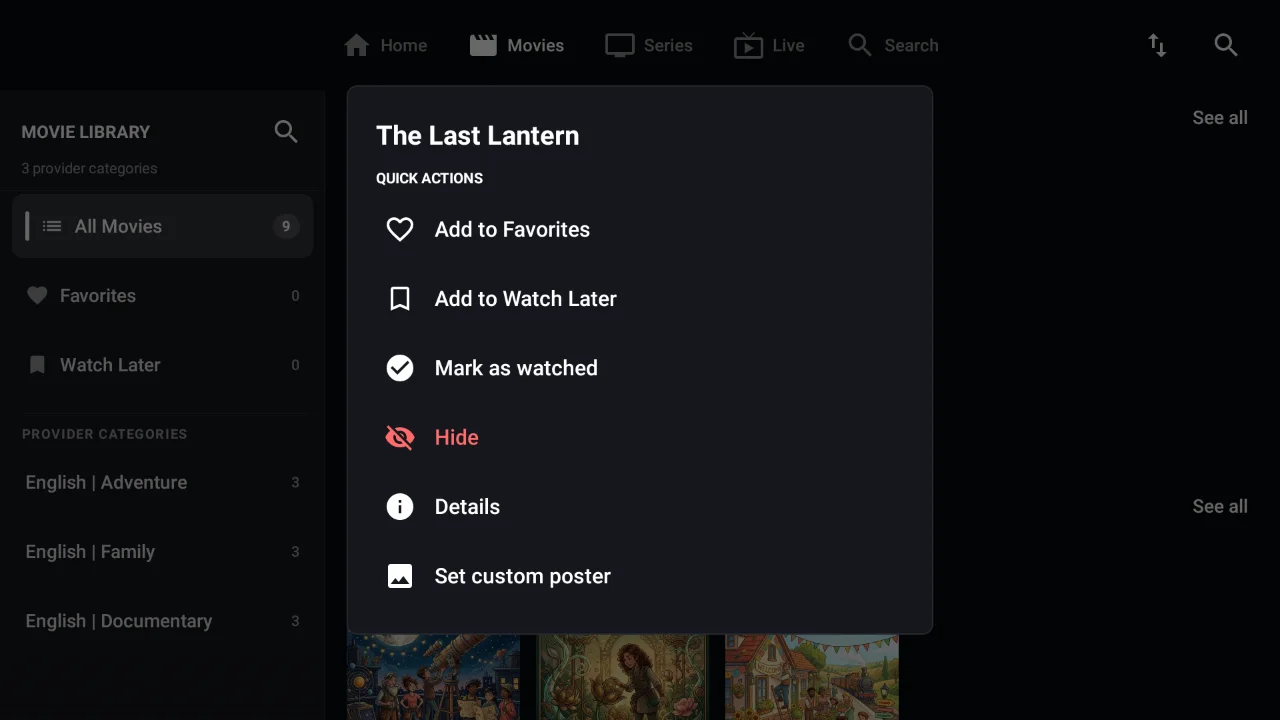
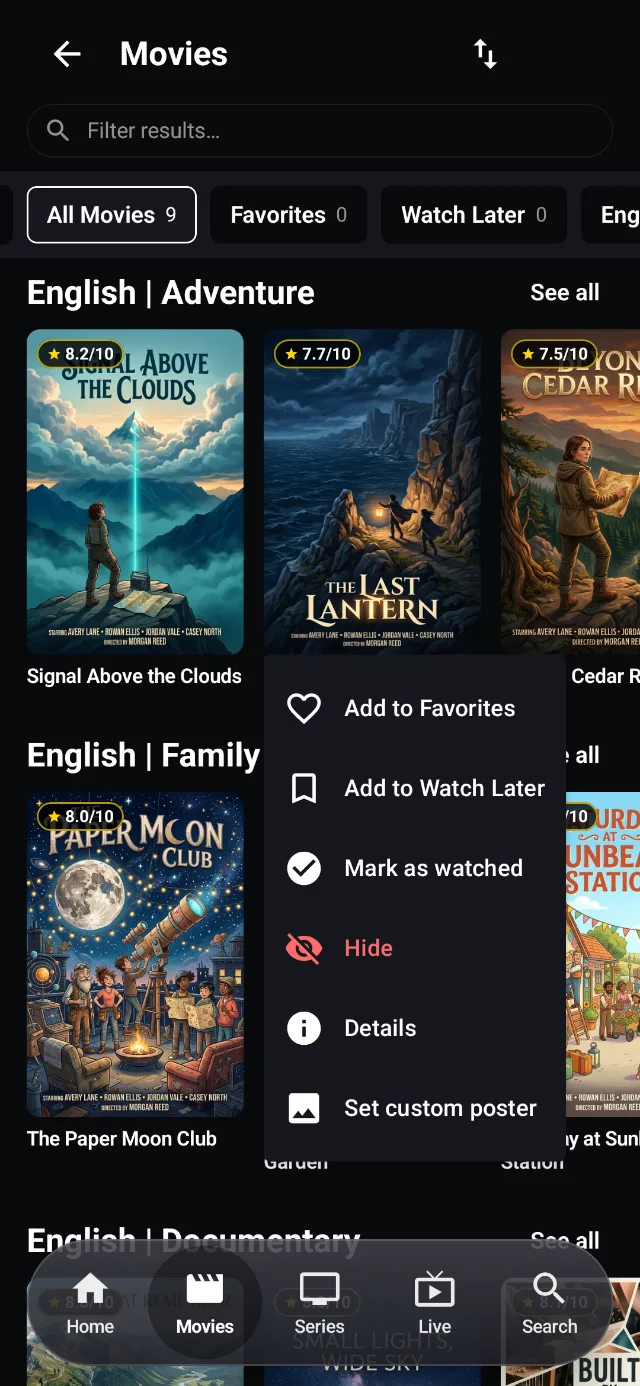
Hold Select on a TV poster or long-press an item on phone to open its actions. Add a favourite, or save a movie or series to Watch Later where offered. Detail screens also provide saved-list actions.
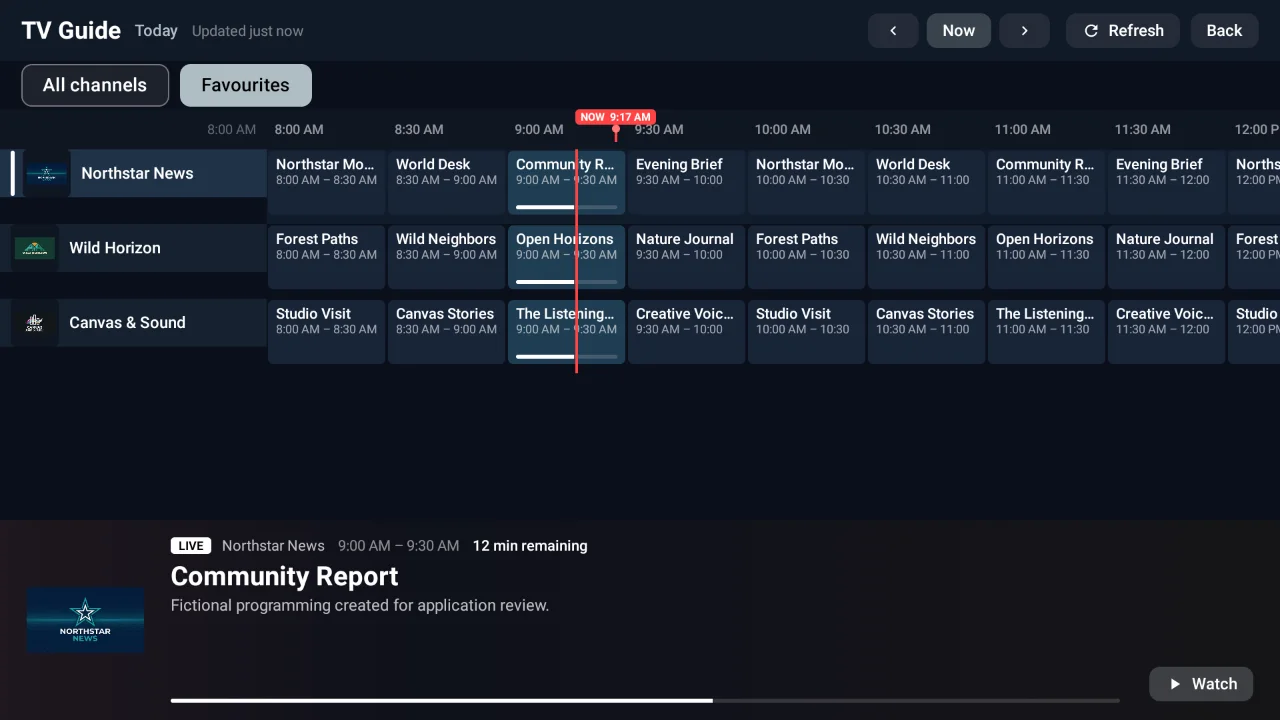
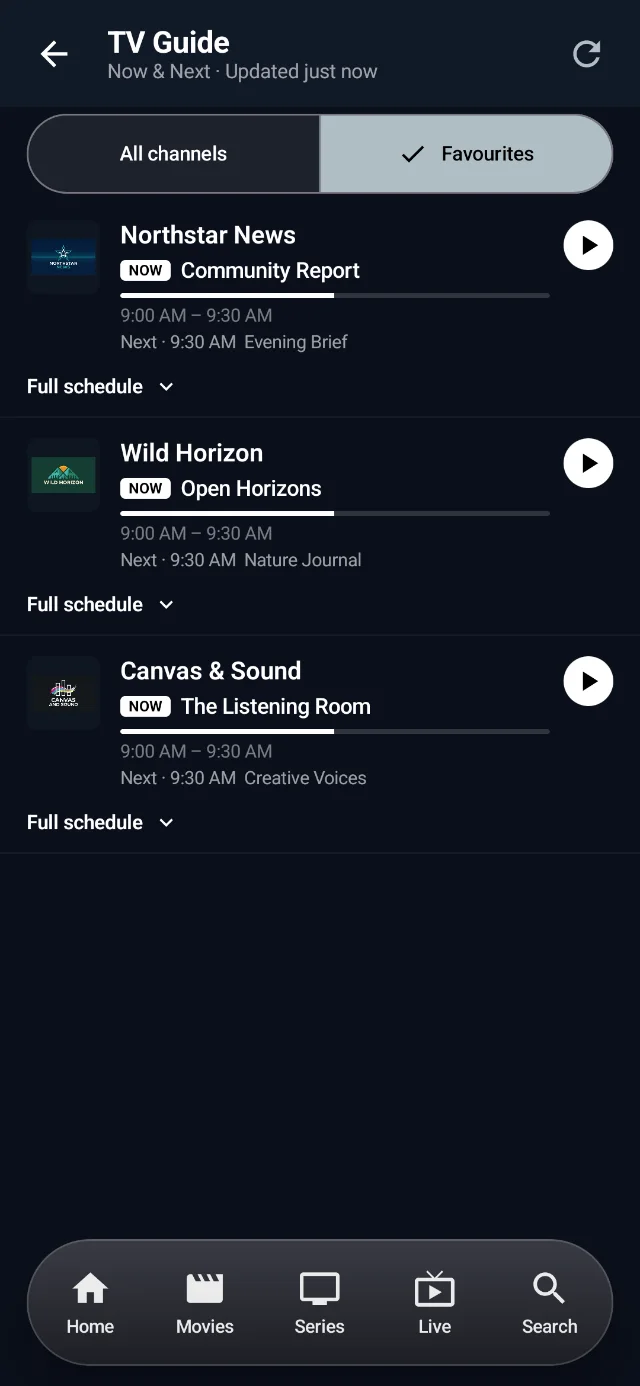
Find saved content in Home's favourite rails and saved-content categories. Live channel favourites are also used by the TV Guide filter.
The filter is available on both the TV timetable and phone Now & Next guide. If nothing appears, check that your saved live channels have provider guide IDs and available programme data.
Open Settings > Playlist > Languages and generate your language filter list. Select the languages you want to see. If the provider adds new language groups, use Re-scan and Generate filter list again.
Filtering a large catalogue reduces visible clutter and may improve browsing responsiveness. It does not translate audio. Home's featured-language choices can be configured separately from browse filters.
Hide rails you don't need, rearrange the ones you use, and adjust Items per rail. You can also hide the featured banner for a simpler Home screen.
Choose category and content sorting in settings, or use the browse Sort menu. Recently added series use provider added/updated timestamps when available, falling back to release dates. Episode order has its own setting.
Explore Appearance for accent colours and poster sizes, Playback for viewing preferences, and Parental Controls for PIN-protected restrictions. Playlist settings include refresh, language discovery, history, and cache tools.
Settings illustrations, not interactive controls. Make these changes in the app.
The app bundles a device-specific guide in Settings > Help & Support. You can read it without opening a browser.
Available offline in the appFor troubleshooting and support details, visit Help & FAQ. Do not send passwords, playlist URLs with credentials, or pairing codes.
Keep sign-in details private